schedules
A schedule runs a script automatically — either repeatedly on a cron expression, or once at a set date and time.
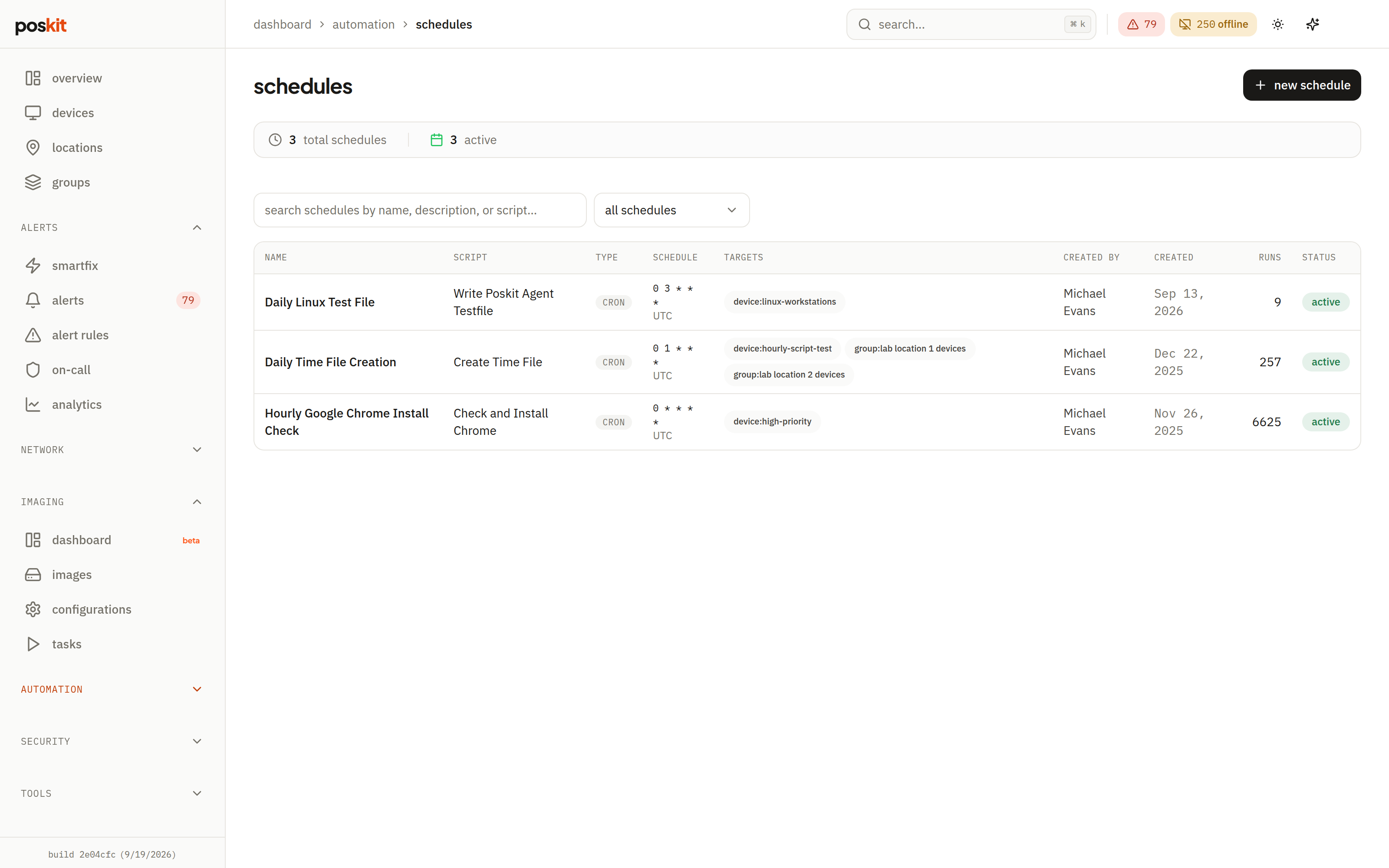
the schedules list
A stat strip across the top gives total, active and paused counts. The toolbar has a search box covering the schedule name, description and script name, and a status dropdown filtering to all, active, paused or one-time.
| Column | Notes |
|---|---|
| name | |
| script | The script the schedule runs |
| type | Cron, interval or one-time |
| schedule | The cron expression, interval or one-time date and time, with the timezone below it |
| targets | Chips for the device tags, location tags and device groups targeted |
| created by | |
| created | |
| runs | Executions produced so far |
| status | Active or paused |
creating a schedule
New Schedule opens a four-step wizard.
1. select script
Pick the script to run.
Only approved scripts run on a schedule. Unapproved scripts are skipped at execution time rather than raising an error. In practice every portal-created script is approved — see writing scripts.
2. configure schedule
| Field | Notes |
|---|---|
| Schedule Name | Required |
| Description | |
| Enable Schedule | A switch — leave it off to create the schedule paused |
Below that, a Timing tab group with three options.
Cron Expression
Three ways to fill it in:
- AI Cron Builder — describe the schedule in English and get a cron expression back.
- The Cron Expression free-text field, if you already know what you want.
- Six quick presets:
| Preset |
|---|
| Every hour |
| Every 6 hours |
| Every day at midnight |
| Every day at 9 AM |
| Every week on Monday |
| Every month on 1st |
Interval
Run every N minutes (up to 59), hours (up to 23) or days (up to 31).
Intervals run on cron boundaries: every 5 hours fires at 00:00, 05:00, 10:00, 15:00 and 20:00, then resets at midnight rather than rolling over continuously. For a cadence that doesn't divide the day evenly, use a cron expression.
One-Time
A single date-and-time field.
Timezone
A select with nine options. The cron expression or one-time time is interpreted in this timezone.
| Timezone options |
|---|
| UTC |
| America/New York (EST) |
| America/Chicago (CST) |
| America/Denver (MST) |
| America/Los Angeles (PST) |
| Europe/London |
| Europe/Paris |
| Asia/Tokyo |
| Australia/Sydney |
For UK estates, choose Europe/London rather than UTC if the run needs to happen at a consistent local hour. UTC does not follow British Summer Time, so a UTC-scheduled overnight job drifts by an hour for half the year.
3. target devices
Three mechanisms, and at least one target is required:
| Mechanism | How |
|---|---|
| Device Tags | Type and press Enter, or pick from the available tags |
| Location Tags | The same |
| Device Groups | Chosen through a selector dialog |
Tags are lower-cased as you enter them.
Targets combine with OR logic. A schedule targeting the tag kitchen and a group Flagship Sites runs on every device that has the tag or is in the group — not only those in both.
The schedule wizard has no "specific devices" option. If you need to name individual machines, either tag them and target the tag, or put them in a static group. The file distribution wizard does offer specific devices.
4. review and create
A summary of everything above before the schedule is saved.
schedule detail
The header carries the name, an Active or Paused badge, the creator and the execution count, along with an Enabled/Paused toggle switch, Edit and Delete.
Three stat cards: Schedule Type (with its timezone), Total Executions and Next Run.
Overview tab
Three cards — a Script card, a Schedule Configuration card, and a Target Devices & Locations card listing the tag and group chips along with a Calculate Targets button that expands into a searchable list of the devices currently matched.
Executions tab
Every run this schedule has produced, with its status, device counts (completed and failed), a success rate bar, the start time and the duration.
what Calculate Targets shows
Calculate Targets resolves the schedule's targeting with the same logic execution uses — group targeting applied, Android devices excluded, and the targeting methods combined with OR.
The one deliberate difference: the preview includes offline and agentless devices so you can see everything the schedule targets. Execution skips them at run time, and the preview says so — each device row carries its status badge, and an "N online · M offline" line appears when any target is offline.
To confirm what a run actually reached, check the resulting execution.
one-time schedules pause themselves
Once a one-time schedule has fired, it is automatically set to paused. It does not delete itself — it stays in the list as a paused entry with a record of its run.
This is why the schedules list can accumulate paused one-time entries over time, particularly if your team uses Schedule for Later from the Run Script dialog, which creates one. Delete them when you no longer need the record.
what schedules do not do
To set expectations clearly, the following have no setting in the product:
| Not available |
|---|
| Per-schedule concurrency or overlap control |
| Retry policies for failed devices |
| Maintenance windows or blackout periods |
If two runs of the same schedule could overlap, keep the script itself safe to run concurrently, or choose a cron cadence comfortably longer than the script's execution timeout.