scripts
The scripts page is your library — everything your organisation has written or installed, organised into folders, plus the gallery of templates PosKit publishes.
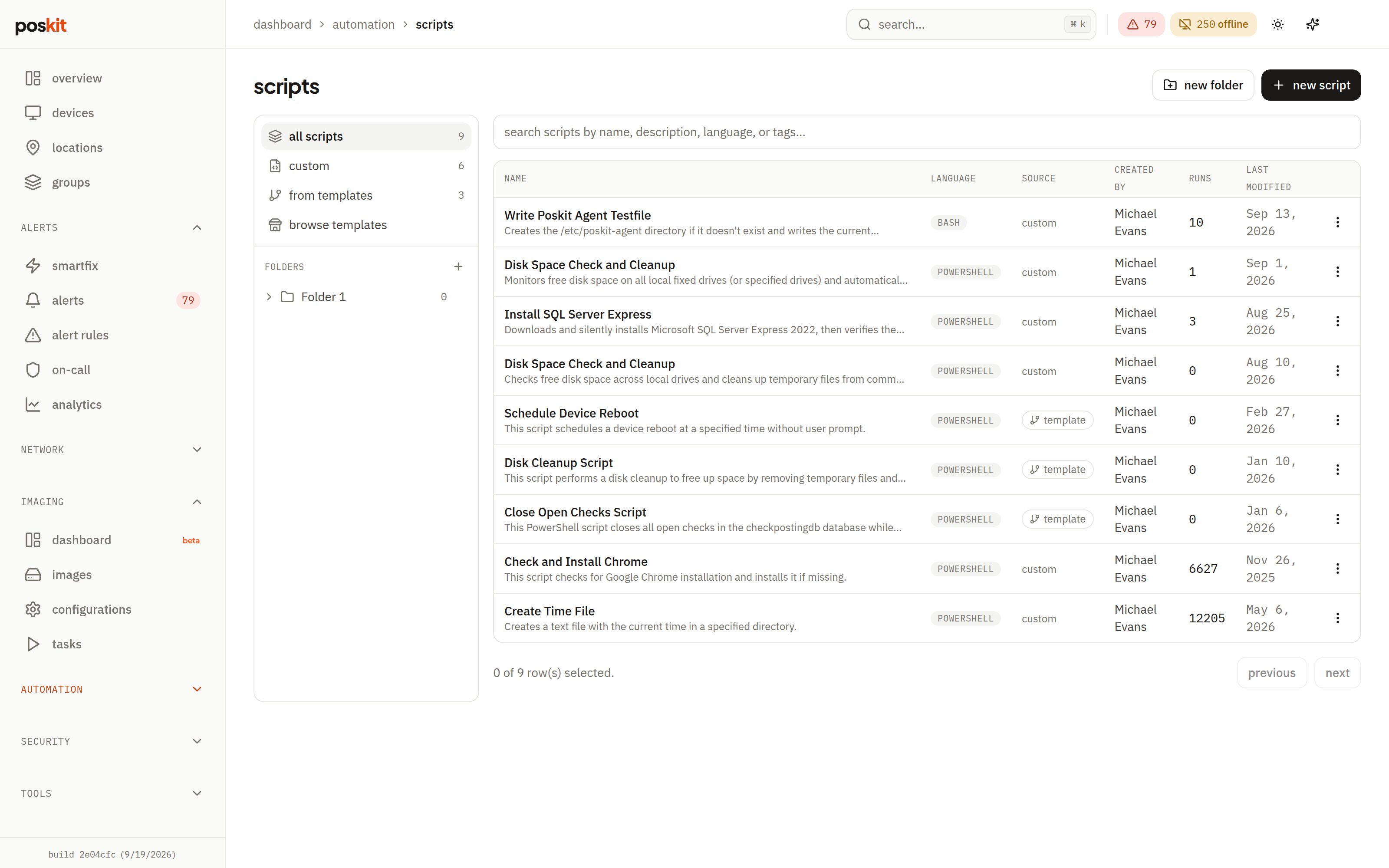
layout
The page is a two-pane view: a navigation tree on the left, and a search box and table on the right.
the left pane
| Node | What it shows |
|---|---|
| all scripts | Everything in the library |
| custom | Scripts written by your team — anything not installed from a template |
| from templates | Scripts installed from the PosKit template gallery |
| browse templates | Switches the right pane to the template gallery. Requires automation:create |
| folders | Your folder tree, with a + button to add one |
Folder rows show a count of the scripts inside them and carry a menu with new subfolder, rename and delete.
A folder can only be deleted when it is empty. Move or delete its scripts first.
Which folders you have expanded is remembered between visits.
the table
| Column | Notes |
|---|---|
| name | With the description underneath, and an update badge when the source template has a newer version |
| language | PowerShell, Bash, Batch or Python |
| source | Template or custom |
| created by | |
| runs | Total executions |
| last modified | |
| Row menu | Move the script to root, or to any folder |
The search box filters on name, description, language and tags.
header buttons
new folder and new script both require automation:create.
organising with drag and drop
Scripts and folders can be dragged onto a folder to move them into it, or onto all scripts to move them back to the root. The row menu on each script does the same thing without dragging, which is usually easier on a long list.
Dragging a folder into one of its own descendants is blocked — the drop will not be accepted.
the template gallery
Templates are ready-made scripts published by PosKit. Click browse templates to see the ones you have not installed yet.
Each card shows the template's name, description, language, category, version, install count and tags. Clicking a card opens a preview with three tabs:
| Tab | Contents |
|---|---|
| code | The full script body |
| parameters | The parameters the script accepts |
| info | Version, category and other metadata |
Press install and the template is copied into your library as a normal script — already approved and ready to run.
Templates are published by PosKit. Your organisation consumes them; there is no facility to publish your own templates back to the gallery. To share a script internally, put it in a shared folder — everyone in your organisation sees the same library.
template updates
When PosKit publishes a newer version of a template you have installed, an update badge appears next to the script's name in the table, and the script's own detail page shows an amber banner with an Update from Template button. See writing scripts.
Updating from a template is a deliberate action, not an automatic one. If you have customised an installed script, review the diff the update button offers before accepting it — your edits are in that comparison.
where to go next
- writing scripts — creating and editing
- running scripts — running one on demand
- schedules — running one repeatedly