managing locations
The locations page opens on a map, with a table view a click away. On the map, sites appear as markers coloured by health, with a collapsible side panel listing them and their tags.
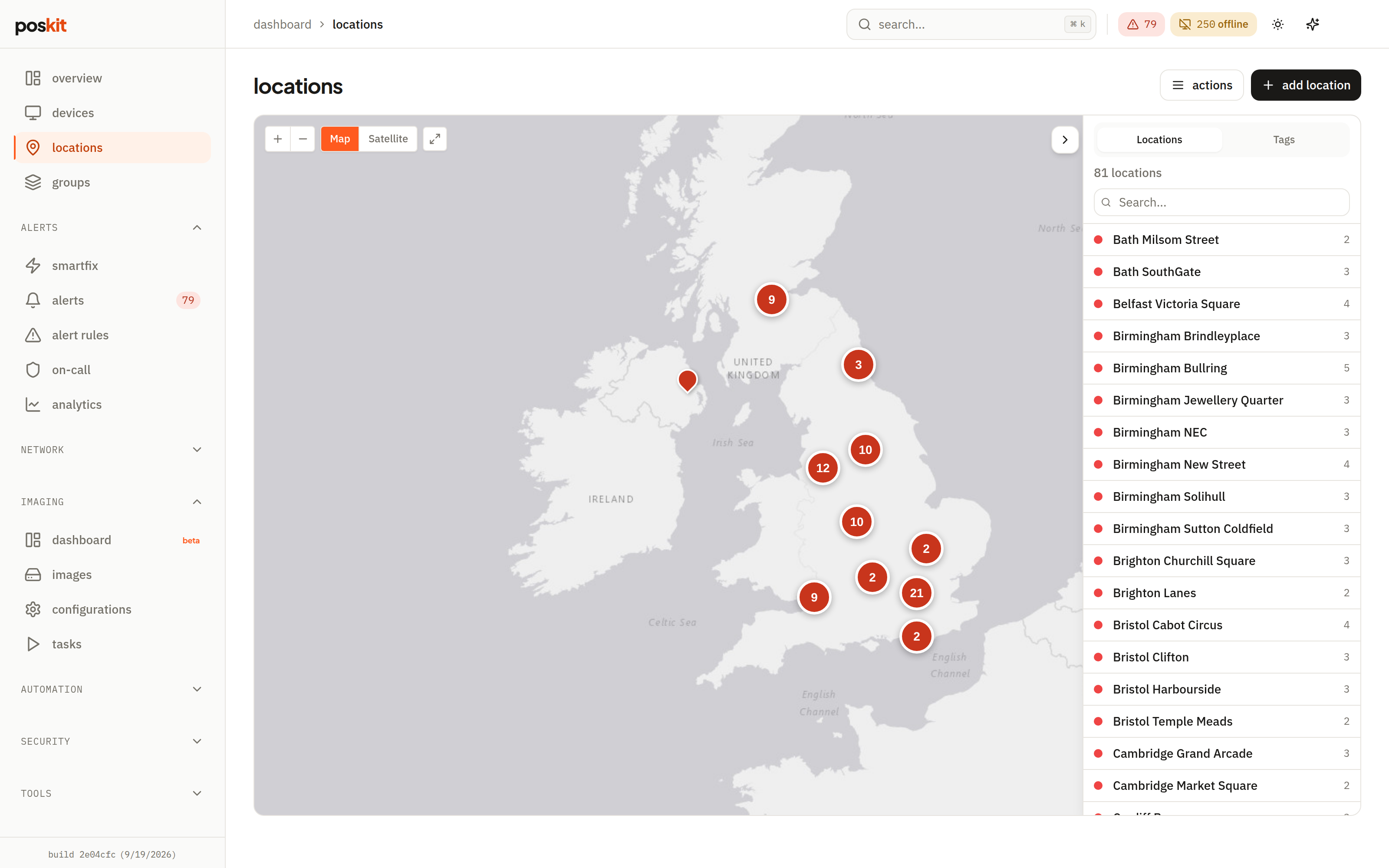
page header
| Control | Notes |
|---|---|
| Actions → Import from CSV | Bulk create from a template |
| Actions → Bulk Modify | Edit existing locations via CSV round-trip |
| Actions → Import from Integration | Create locations from a connected integration |
| Actions → Cleanup Locations | Destructive — see cleanup |
| Add Location | Create a single location |
filters and views
The filter bar applies to both views, and its count says how many locations match:
| Filter | Notes |
|---|---|
| search | Matches name, address, city or tag |
| health | healthy (90%+), needs attention or no health data |
| tag | A single tag — only shown once at least one location has a tag |
The map / table toggle beside the filters switches views. The page remembers your choice on this browser, and the table view adds ?view=table to the URL so you can link straight to it.
Your favourite locations ignore all three filters.
the map
Markers use clustering, so nearby sites collapse into a single numbered marker until you zoom in.
The default view is UK-centred at zoom 6 when no location has coordinates. Once at least one location does, the map auto-fits to the bounds of your estate.
Locations without latitude and longitude do not appear on the map at all.
They still appear in the side panel list, so they are not lost — but a location with no geocoded address is effectively invisible on the map view. If your marker count looks lower than your location count, this is why. Check the side panel list against the map, and add proper addresses to the locations that are missing.
marker colours
Marker colour reflects the location's health score:
| Health score | Colour |
|---|---|
| 90 or above | Green |
| 50 to 89 | Amber |
| Below 50 | Red |
A cluster takes the colour of the worst health score inside it. One failing store turns an entire cluster red, even when every other site in it is green. Always zoom in on a red cluster before drawing conclusions about a region — it may be a single site.
Both the list and the health data refresh every 60 seconds.
map controls and popups
Controls: zoom in, zoom out, a Map / Satellite toggle, and fit-all-locations.
Clicking a marker opens a popup with the location name, address, city and state, Health %, Devices count, and a View Details button through to the location detail page.
side panel
Collapsible, with two tabs.
locations tab
A scrolling list of every location matching the filters — including those with no coordinates, which are marked not on the map. Your favourites come first, marked with a star.
- Clicking a row flies the map to that location.
- Clicking the name navigates to its detail page.
- The … menu on each row holds favourite, open location, view devices, view analytics and, for located sites, show on map — plus delete location for users with
location:delete.
tags tab
Every distinct location tag with its location count. Clicking a tag sets it as the tag filter and switches back to the locations tab, so it filters both the list and the map markers.
The Tags tab is the fastest way to view a subset of the estate on the map — tag your locations by region, format or ownership and you get a one-click filtered map for each. See tags.
the table
The table view lists the same filtered locations, with sortable location, place, health and devices columns, the location's tags, a map pin button to show it on the map, and the same … menu as the side panel. It pages once more than 25 locations match. Your favourites are pinned to the top — see below.
Once any location has a tag, locations / tags tabs above the table switch to a table of every tag and how many locations carry it.
favourite locations
Favourite the sites you look at most and they stay at the top wherever you look. Open the location's … menu, in the side panel or the table, and choose favourite. The same menu offers remove favourite to take it off again. A favourite is marked with a star beside its name.
Favourites:
- ignore the search, health and tag filters — they stay in the list, and on the map if they have coordinates, whatever you filter by, with the matching locations below them.
- come first in the side panel and in the table.
- are pinned to the top of the table — sorting a column or moving to another page never moves them, and they head every page.
- are your own — other users keep their own favourites, and yours follow you to any browser you sign in on.
You can favourite up to 100 locations.
Because favourites bypass the filters, the filter bar's count includes them. A filter that matches nothing still shows your favourites.
creating a location
Add Location opens a form with these fields:
| Field | Notes |
|---|---|
| Location Name | |
| Street Address | Needed for the location to be geocoded and appear on the map |
| City | |
| State/Province | |
| ZIP/Postal Code | |
| Country | |
| IP Subnet | For example 192.168.1.0/24 |
| Device Name Pattern | Regex, for example WIN11-.* — see device name matching |
| Description |
Set the Device Name Pattern or IP Subnet. They are what auto-assign newly-registered devices to this location (hostname pattern first, then subnet). Filling one in before a site's devices are installed saves reassigning them afterwards — see device name matching and locations overview.
CSV import
Actions → Import from CSV creates locations in bulk. The template has twelve columns:
name, address, city, state, zipCode, country, phoneNumber, currency, timezone, ipSubnet, deviceNamePattern, description
All twelve columns must be present in the file, but only name needs a value. The import rejects the whole file if a column is missing from the header row, so start from the downloaded template rather than building the file yourself. Every other field can be left blank on any row.
bulk modify
Actions → Bulk Modify edits existing locations. It uses the same columns plus two more:
| Column | Notes |
|---|---|
id | Read-only — used to match rows to existing locations |
tags | Comma-separated |
Both bulk-modify dialogs accept commas or semicolons as the tag separator. Location exports write commas; device exports write semicolons (a comma inside an unquoted device CSV cell would split the column) — but a list pasted with either separator parses correctly in both.
cleanup locations
Cleanup Locations deletes locations. It is destructive and requires location:delete — the menu item only appears for users holding that permission.
It offers two filter toggles, combined with AND:
- no devices assigned
- no address
Because the filters are ANDed, enabling both selects only locations that have neither devices nor an address — the narrower, safer selection. Enabling just one is broader.
Before deleting, the tool lists exactly which locations will be removed. Read this list rather than trusting the filter description.
To enable the delete button you must type the literal phrase:
delete locations
Cleanup is most useful after a CSV import that produced duplicates, or after an integration import created placeholder sites. Locations with no address are also the ones invisible on the map, so this doubles as a way to tidy up entries that were never usable.