deployments
Patch management is in beta. Behaviour and screens may change.
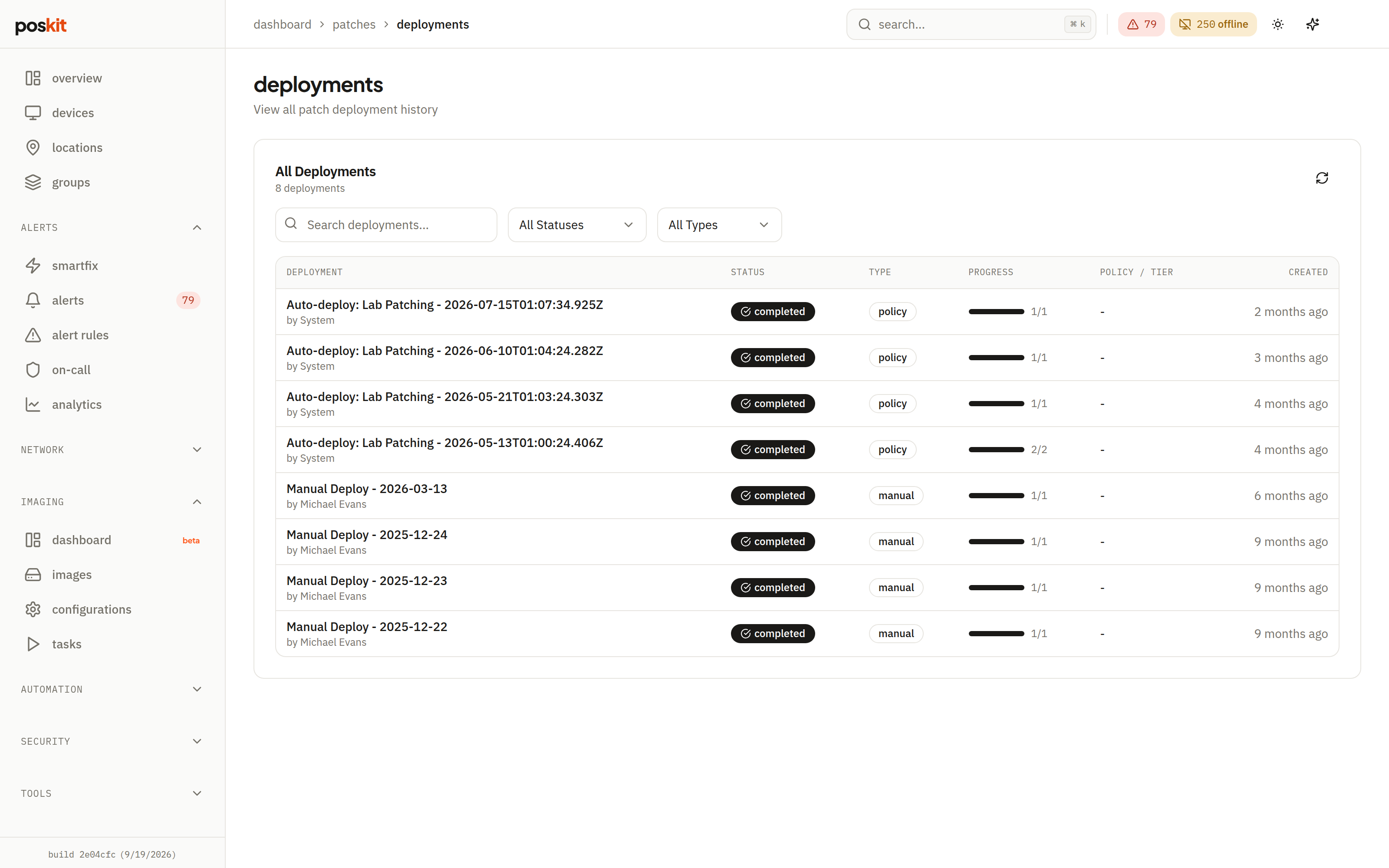
A deployment is the act of installing a set of patches on a set of devices. Deployments come from one of two places.
| Type | Origin |
|---|---|
| Manual | Created ad-hoc from the Deploy button, either immediately or scheduled |
| Policy | Created by policy evaluation, flowing through tiers |
statuses
Three separate things carry a status, and they are easy to confuse.
Deployment status — the whole deployment:
| Status |
|---|
| Pending |
| Approved |
| Scheduled |
| In Progress |
| Completed |
| Partial Success |
| Failed |
| Cancelled |
A finished deployment is Completed when every device succeeded, Failed when none did, and Partial Success when some devices succeeded and others failed. Cancelled devices count towards neither. Tiered and non-tiered rollouts follow the same rule, and a tiered rollout is judged across all its tiers.
Task status — one device's part of a deployment:
| Status |
|---|
| Pending |
| In Progress |
| Completed |
| Failed |
| Cancelled |
| Rebooting |
A task is Failed if any of its patches failed, or if the device reported that the install run as a whole failed. A task is Rebooting only while the device carries out a reboot it has started; when a reboot is needed but was not performed — outside the reboot window, or with someone signed in — the task completes with a note that a reboot is pending. See deferred reboots.
Device patch status — one patch on one device:
| Status |
|---|
| Pending |
| Approved |
| Installing |
| Installed |
| Failed |
deploying manually
The Deploy button needs patch:deploy, which is a supervisor permission. It opens a four-step dialog: patches → devices → options → confirm.
Options are:
- Scheduled for — deploy now, or schedule for a time.
- Reboot policy. A scheduled deployment keeps the reboot policy you chose when you scheduled it.
Deploying patches can ask for high-risk verification when it targets more devices than your thresholds allow. The percentage-of-fleet threshold only applies once a deploy targets five or more devices, so patching one or two devices in a small organisation does not ask for a code on that account.
Manual deployments offer only Never, Manual and Immediate. Scheduled is not available here, unlike the four options in the policy wizard.
Scheduled reboots depend on a policy's reboot window, and an ad-hoc deployment has no window to schedule into.
the deployments list
| Control | Options |
|---|---|
| Search | — |
| Status filter | All, Completed, Partial Success, In Progress, Failed, Scheduled, Pending, Cancelled |
| Type filter | All, Manual, Policy |
| Clear filters | Resets both filters |
| Refresh | Reloads the list |
deployment detail
A deployment's own page shows:
- A status badge and a success-rate bar.
- Completed, succeeded and failed counters.
- A details card: status, policy, tier, reboot policy, timestamps, "N device(s) pending reboot", and "cancelled by" where applicable.
- A per-device tasks table with each task's status, patch counts, a reboot badge where a reboot is required, and error output.
failure reasons and retries
A failed task's error output says why. Where the device reported its own error, that is shown; otherwise the reason summarises the patches, for example "2 patch(es) failed to install", or "1 patch(es) not found in the Windows Update catalog (superseded or withdrawn — rescan the device)".
A patch Windows Update no longer offers usually means a newer update has replaced it. Rescan the device, and the Available tab will show what it needs now.
Failed patches stay Failed and remain deployable:
- A policy retries them once per install window. See failed patches and retries.
- You can retry them yourself at any time from the Deploy button, where failed patches carry a retry badge.
The page auto-refreshes every 5 seconds while the deployment is in progress or pending, then stops once it reaches a terminal status. You do not need to reload it to watch a rollout, and it will not keep polling a finished one.
what you can do to a deployment
Cancel and Execute. There is no approve, start or pause action on a deployment.
| Action | When it works |
|---|---|
| Execute | Only on a Scheduled deployment. It pulls the scheduled time forward to now |
| Cancel | Rejected once the deployment is completed, partial success, failed or cancelled. Cancels all pending, in-progress and rebooting tasks, and recalls installs still queued for offline devices |
So a deployment that is already running cannot be paused — only cancelled. And a deployment you want to bring forward must be in the Scheduled state; Execute does nothing to a pending one.
stale tasks
Tasks self-heal rather than hanging forever:
| Task state | Times out after |
|---|---|
| Pending | 2 hours |
| In Progress | 3 hours |
| Rebooting | 2 hours |
These timeouts mean a device that goes offline mid-deployment will not hold a deployment open indefinitely. The task times out, the deployment reaches a terminal status, and the device picks up its outstanding patches on a later run.
A rebooting task that times out after 2 hours usually means the device did not come back — worth investigating on the device itself rather than retrying the deployment.