agent updates
Agent updates is a staged, resumable rolling deployment of a new agent version across the estate. It gives you concurrency control, pause and resume, per-device status and a retry path for failures.
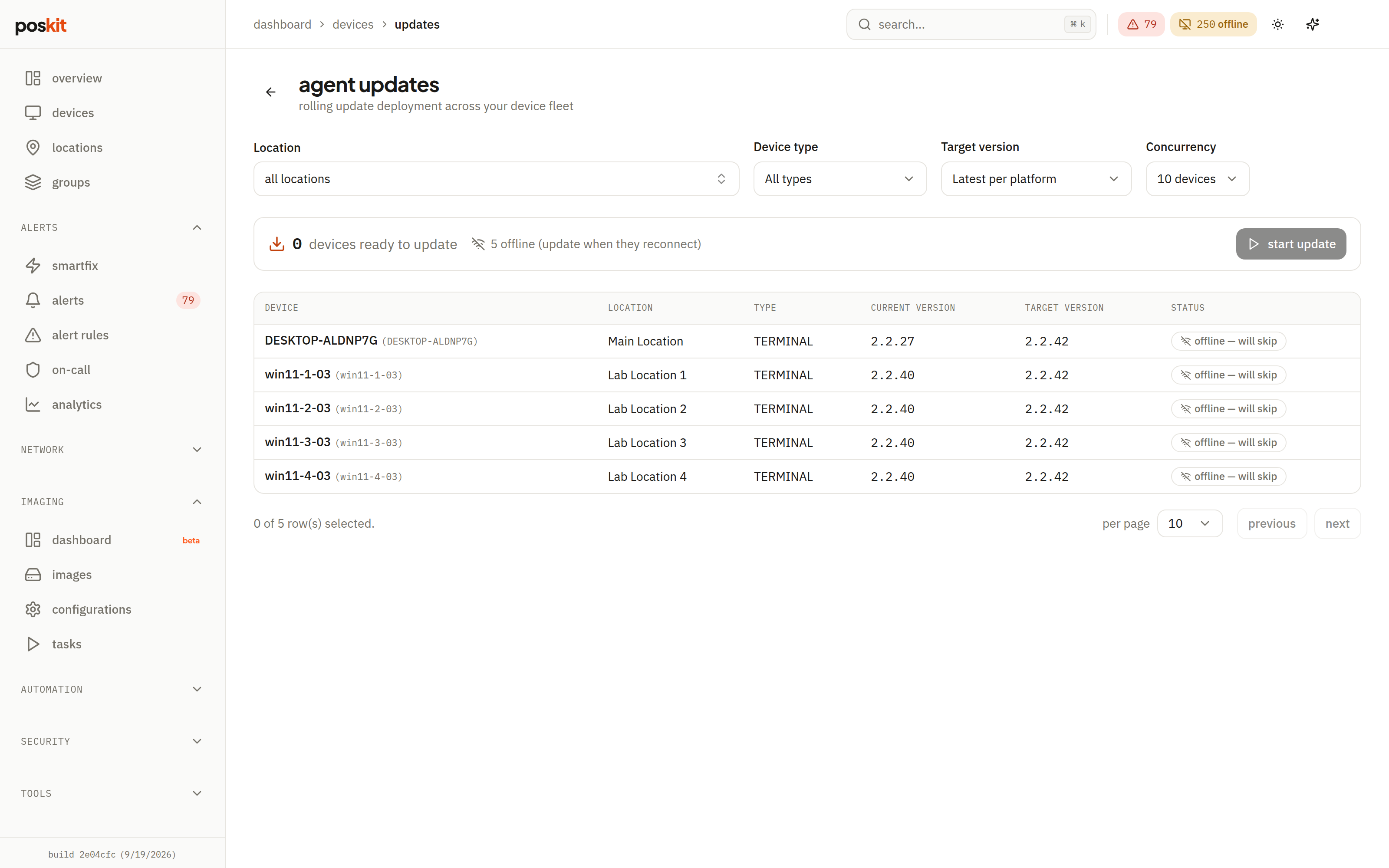
There is no sidebar entry for this page. It is reached from the "N need updates" stat on the devices list, which only appears when at least one device is out of date. If nothing needs updating, there is no link — and nothing to do.
Only one rollout can be active at a time per organisation. Plan around this: you cannot run separate rollouts for two regions concurrently. Either run them in sequence, or use a single rollout scoped widely enough to cover both.
two ways in, one mechanism
The Update Agents dropdown in the bulk actions toolbar is not a lighter-weight alternative. It creates exactly the same rollout, with the devices you selected already chosen as the targets. Delivery is heartbeat-driven either way.
| Use | When |
|---|---|
| Bulk action Update Agents | You have already picked the devices on the list and want the rollout scoped to them |
| Agent updates rollout | You want to choose targets by location, device type and version on the setup screen |
Because it is the same rollout, the bulk action is subject to the same one-active-rollout-per-organisation limit: if a rollout is already running, the action fails with a conflict telling you an agent update rollout is already in progress. Finish, cancel or dismiss the current one first.
phase 1 — setup
| Control | Options | Default |
|---|---|---|
| Location | Combobox | All locations |
| Device type | Select | — |
| Target version | "Latest per platform", or a specific pinned version | Latest per platform |
| Concurrency | 5 / 10 / 25 / 50 / 100 / 250 devices | 10 |
Concurrency is how many devices update simultaneously. Lower values take longer but limit the blast radius if a version turns out to be problematic; higher values finish sooner.
A summary banner reports "N devices ready to update" alongside "N offline (update when they reconnect)". The start button is disabled when the online count is zero — there is nothing to do until at least one target device is online.
The preview table shows a sample of the outdated devices — when truncated, a note beneath it reads "Showing first N of M outdated devices". The rollout applies to all matching devices; the summary banner count is the size of what you are about to start.
On a first rollout of an unfamiliar version, scope to a single location and set concurrency low. Confirm those devices come back healthy before running the estate-wide rollout.
phase 2 — running
While a rollout is in progress the page shows:
- Stat cards for updated, in progress, failed, skipped and remaining
- A progress bar
- An estimated remaining time
- Pause / resume and cancel controls
The page polls every 3 seconds, so the figures move on their own without a refresh.
Pausing stops new devices being started; it does not roll back devices already updated. Resuming continues from where it stopped.
phase 3 — complete
On completion you get a summary plus:
| Control | Availability |
|---|---|
| Retry Failed | Only when there are failures |
| New Rollout | Always — resets the page to setup |
| Back to Devices | Always |
A finished rollout stays on screen until someone clicks New Rollout. If a colleague opens the page and sees a completed rollout from last week, nothing is wrong and nothing is running — the result is simply still displayed. New Rollout is what dismisses it and is also the only way to start the next one.
per-device statuses
| Status | Meaning |
|---|---|
| queued | Waiting for a concurrency slot |
| updating | In progress |
| updated | Completed successfully |
| failed | Update failed — eligible for Retry Failed |
| skipped | Not attempted — the device never came online before the rollout was reaped, or the rollout was cancelled while the device was still queued |
offline devices are queued, not skipped
Every out-of-date device that matches your filters is queued, whether it is online or offline at the moment you start. There is no separate offline path.
Delivery is driven by the agent's heartbeat: the update is handed to each device the next time it checks in. An offline device therefore converges on the target version whenever it reconnects, without you doing anything — as long as the rollout is still running.
The summary banner on the setup screen splits the count into devices ready to update (online now) and devices offline (update when they reconnect). Both groups are queued; the split only tells you how much will happen immediately. The start button is disabled when the online count is zero.
A rollout that makes no progress for 30 minutes is reaped. Devices still queued at that point are marked skipped with a reason of not having come online during the rollout. So a device that stays offline for longer than that window will not be caught by this rollout — it is left to normal auto-update instead.
Cancelling a rollout has the same effect on anything still queued: those devices are marked skipped immediately.
Either way, the rollout can finish while part of the estate is still on the old version. Check the devices list "N need updates" stat afterwards to see what is genuinely outstanding.
Auto-update is itself an agent setting — if Auto Update has been turned off at the organisation, location or device tier, a device that was skipped will not catch up on its own when it reconnects. See agent configuration.