viewing devices
The devices page is the main inventory view for the estate. It offers two ways to look at the same fleet — a flat List View and a hierarchical Tree View — with a shared filter bar and a shared bulk-actions toolbar.
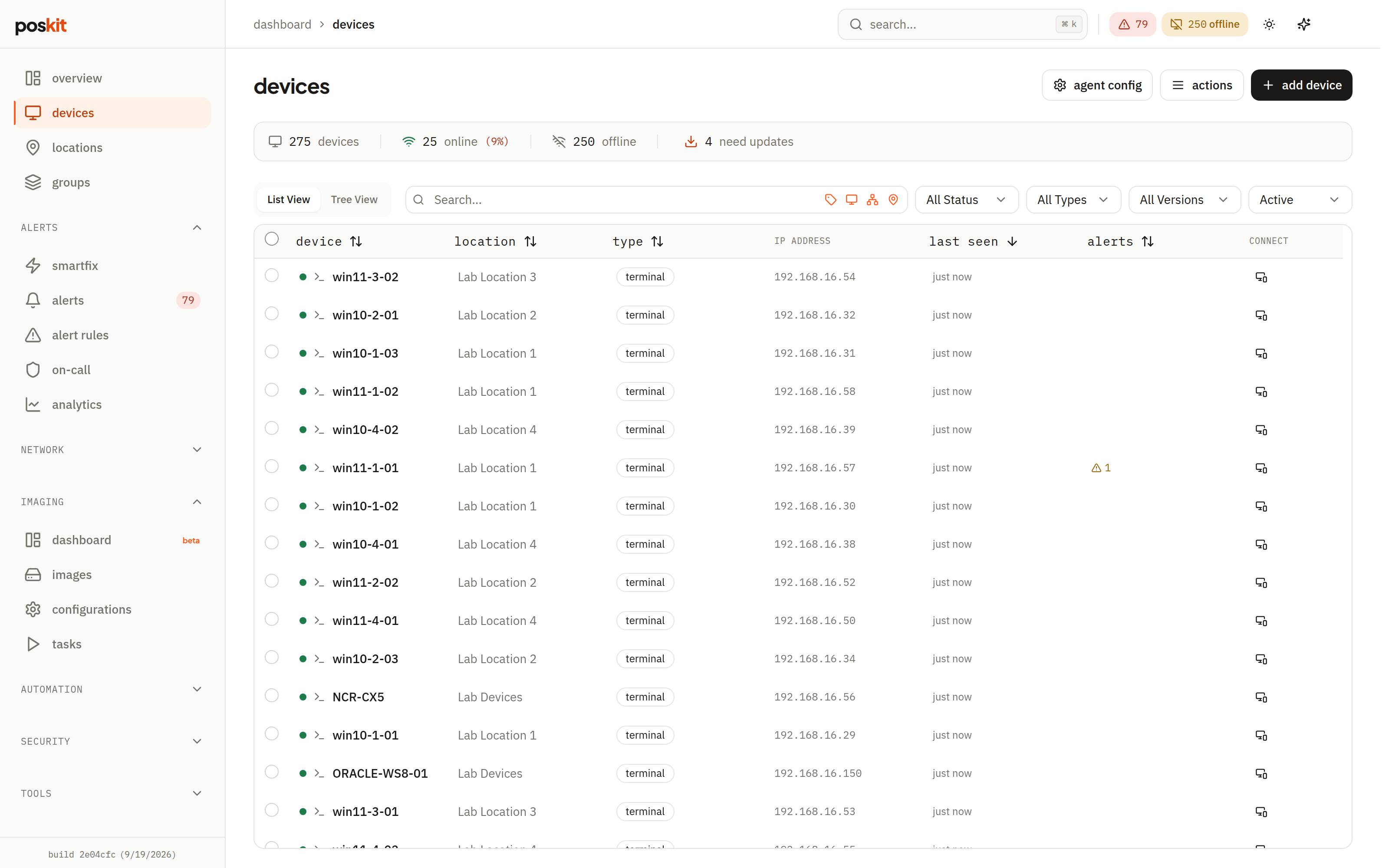
page header
| Control | Permission | What it does |
|---|---|---|
| Agent Config | device:control | Opens agent configuration |
| Actions → Reassign Locations | device:edit | Maps devices to locations via an integration — see bulk actions |
| Actions → Bulk Modify | device:edit | The CSV round-trip |
| Add Device | device:create | Opens the install modal — see installing the agent |
the stats strip
A row of counts across the top, all excluding archived devices.
| Stat | Detail |
|---|---|
| N devices | Shows a green +N when devices were added in the last 7 days |
| N online (%) | Colour-coded: 90% or above green, 70% or above amber, below that red |
| N offline | Always shown |
| N warning | Only shown when above zero |
| N maintenance | Only shown when above zero |
| N need updates | Only shown when above zero — links to agent updates |
The "N need updates" figure is the only route into the agent updates page. It has no sidebar entry of its own.
filters
The filter bar applies to both views, and filter state is mirrored into the URL. A filtered view is therefore shareable and bookmarkable — you can send a colleague a link to exactly the set of devices you are looking at.
Your sort and filters are also remembered between visits, per organisation, in this browser. The search text is not, so a forgotten search can't quietly hide devices next time. A link that carries its own filters wins over your saved view, and only replaces it once you change a filter or sort yourself. Once the view differs from the default, a Reset view button appears that puts the filters, search and sort back.
search
A search box with four toggleable scopes, all enabled by default:
- name
- hostname
- IP address
- location
The scopes are toggles. If you turn all four off, the search matches nothing at all rather than everything. If a search unexpectedly returns no results, check that at least one scope is still enabled.
filter controls
| Filter | Options | Default |
|---|---|---|
| Status | All / Online / Offline / Warning / Maintenance | All |
| Type | All / Till / Kiosk / Terminal / Server / Other | All |
| Version | All / Out of Date / Up to Date | All |
| Archived | Active / Archived / All | Active |
list view
columns
| Column | Notes |
|---|---|
| Checkbox | Supports shift-click for range selection |
| Device | Status dot, type icon, name; an Archived badge when archived; Android devices show a phone icon |
| Location | |
| Type | |
| IP Address | |
| Last Seen | |
| Alerts | Count of active alerts |
| Connect | Only present when remote control is enabled |
| Row menu |
Status dot colours: ONLINE green, OFFLINE grey, WARNING amber, MAINTENANCE blue.
sorting
Clicking a sortable column header cycles through ascending → descending → unsorted. The default is name ascending.
row menu
| Item | Notes |
|---|---|
| Details | Opens device details |
| Edit | Opens the edit form |
| Archive / Unarchive | Flips depending on current state — see archiving |
| Delete | Permanent |
Delete is not archive. Deleting permanently removes the device and all associated data including metrics, alerts and maintenance tasks, and cannot be undone. For hardware you are retiring but whose history you want to keep, use archiving instead.
empty state
With no devices at all, the page shows "Connect your first POS terminal" and explains that installing the poskit agent on your terminals is what starts monitoring, alerting and fleet management.
When filters are applied but nothing matches, the same area shows "No devices match your filters" instead, suggesting you adjust the search or filter criteria.
tree view
Tree view groups the same devices into a hierarchy:
Location → Department → Floor → Zone → Device
- expand all / collapse all controls, with expanded state remembered between visits.
- Group checkboxes are tri-state and select everything beneath them — ticking a location selects every device in it.
- Group rows show device counts and per-status counts.
- Device rows show three inline metric bars: CPU, Memory and Disk. These are hidden for OFFLINE devices, since there is nothing current to show.
The chosen tab — List or Tree — is remembered across visits.
Tree view offers one bulk action that list view does not: Send Message. If you need to push a message to a set of devices, you must be in tree view to do it. See bulk actions.
large estates: what to expect
The whole device list is loaded into your browser. This has one clear benefit and one clear cost.
The benefit: search covers the entire fleet, not just the page you are looking at.
The cost: on a very large estate the page spends time on "Loading more…" before everything is available.
Which filters are applied where also follows from this:
| Applied in the browser | Applied on the server |
|---|---|
| Search | Status filter |
| Version filter | Type filter |
| Sorting | Archived filter |
The practical consequence: on a large estate, narrowing with Status, Type or Archived first reduces what has to be loaded. Searching or sorting does not — those need the full list in the browser regardless, so they will not feel responsive until loading finishes.